AI Tutorial
Build Your First Voice Assistant with OpenAI and Python: A Developer Tutorial
A hands-on Python tutorial for building a voice assistant with OpenAI's Whisper, ChatGPT, and text-to-speech APIs: recording audio, transcription, generating a spoken-friendly response, and converting it back to audio.
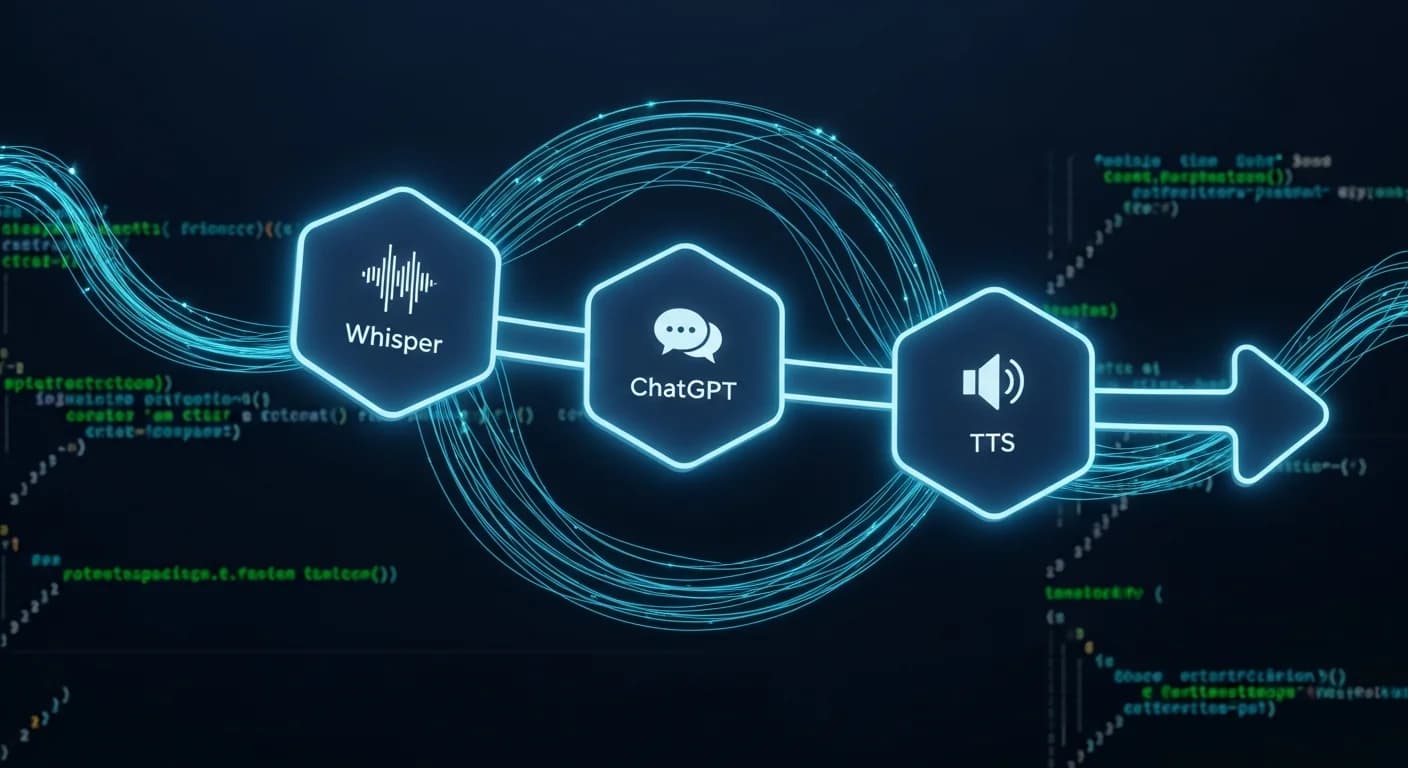
A voice assistant sounds like a large engineering project, but the core loop is just three API calls chained together: transcribe speech to text, send that text to a language model, then convert the response back to speech. This tutorial builds a working command-line version of that loop using OpenAI's Whisper for transcription, ChatGPT for the response, and OpenAI's text-to-speech endpoint for the audio output.
What you'll need
- Python 3.9 or later installed
- An OpenAI API key with billing enabled (this project uses three separate endpoints, each billed per use)
- A microphone, and a way to play audio back from your machine
Step 1: Set up the environment
Create a project folder and install the required packages:
pip install openai sounddevice scipy python-dotenv
Store your API key in a .env file rather than hardcoding it into the script, this matters more than it sounds: API keys committed to code end up leaked in git repositories more often than developers expect.
OPENAI_API_KEY=your-key-here
Step 2: Record and transcribe audio with Whisper
The recording step captures a few seconds of microphone input and saves it as a WAV file, which is then sent to Whisper's transcription endpoint:
import sounddevice as sd, scipy.io.wavfile as wav, os

from openai import OpenAI

from dotenv import load_dotenv

load_dotenv()

client = OpenAI()


def record_audio(filename="input.wav", duration=5, fs=44100):

    print("Recording...")

    audio = sd.rec(int(duration * fs), samplerate=fs, channels=1)

    sd.wait()

    wav.write(filename, fs, audio)


def transcribe(filename="input.wav"):

    with open(filename, "rb") as f:

        result = client.audio.transcriptions.create(model="whisper-1", file=f)

    return result.text
Five seconds is enough for a short question. For longer input, either raise the duration or, for a production version, replace the fixed-duration recording with silence detection so it stops automatically once you finish speaking.
Step 3: Send the transcript to ChatGPT
With text in hand, the chat completion call is straightforward. Keep the system prompt tight, since voice responses should be shorter and more conversational than typical chat output meant for reading on screen:
def get_response(user_text):

    completion = client.chat.completions.create(

        model="gpt-4o",

        messages=[

            {"role": "system", "content": "You are a voice assistant. Keep answers under 3 sentences, conversational, no markdown."},

            {"role": "user", "content": user_text}

        ]

    )

    return completion.choices[0].message.content
The "no markdown" instruction matters here specifically because a bulleted list makes no sense read aloud, this is a case where the prompt has to account for the output medium, not just the content.
Step 4: Convert the response to speech
OpenAI's text-to-speech endpoint takes that response text and returns audio directly:
def speak(text, filename="output.mp3"):

    response = client.audio.speech.create(model="tts-1", voice="alloy", input=text)

    response.stream_to_file(filename)

    os.system(f"start {filename}" if os.name == "nt" else f"afplay {filename}")
The voice parameter accepts several preset options, alloy, echo, fable, onyx, nova, and shimmer, each with a distinct tone. Try a few against your use case; a customer-facing assistant and a personal note-taking tool don't need the same voice.
Step 5: Wire it together
if __name__ == "__main__":

    record_audio()

    text = transcribe()

    print(f"You said: {text}")

    reply = get_response(text)

    print(f"Assistant: {reply}")

    speak(reply)
Run the script, speak a question when prompted, and the full loop, record, transcribe, respond, speak, completes in a few seconds.
Where this breaks, and how to fix it
The most common issue is clipped audio: if the fixed 5-second window cuts off before you finish talking, the transcription will be incomplete and the response will answer the wrong question. Increasing the duration is the fast fix; adding a voice-activity-detection library like webrtcvad is the correct one. Latency is the other constraint worth planning around: three sequential API calls typically add up to 2-4 seconds of round-trip time, noticeable but usually acceptable for a personal tool, less so for anything meant to feel truly real-time.